How to Use Multiple WhatsApp Accounts on PC (2026 Guide)
WhatsApp Desktop and WhatsApp Web each hold one account, and WhatsApp's own two-account switcher works only on phones. To use multiple WhatsApp accounts on PC, give each extra number its own space: WhatsApp Desktop for one, WhatsApp Web in a separate browser profile for the next, or a multi-messenger app. For many numbers, use a dedicated multi-account app.
- Phones: WhatsApp holds two accounts in one app on Android and iPhone. That's WhatsApp's only built-in account switcher.
- PC: WhatsApp Desktop and WhatsApp Web hold one account each. One account can be linked to up to four devices, but that's one account on many screens, not the other way round.
- Free methods: WhatsApp Desktop plus WhatsApp Web, one browser profile per number, a private window, or a multi-messenger app such as Ferdium or Rambox.
- Limits: fine for two or three numbers you answer by hand. For outreach, every number shares your device and IP, with no warm-up and no sending limits.
- Going further: a dedicated app like Wassuply runs every number side by side with its own session, fingerprint and proxy, plus warm-up and safe sending.
In this guide
- What WhatsApp supports in 2026
- Quick steps: two or more accounts on one computer
- Method 1: WhatsApp Desktop plus WhatsApp Web
- Method 2: One browser profile per number
- Method 3: A private window
- Method 4: A multi-messenger app
- Which free method should you use?
- Can WhatsApp ban you for multiple accounts?
- Where free methods fall short for business
- When a dedicated app makes sense
- FAQ
Does WhatsApp support multiple accounts on PC in 2026?
Not on PC. Here is what WhatsApp supports today, checked against WhatsApp's own pages in October 2026.
| Where | Multiple accounts? | What WhatsApp says |
|---|---|---|
| WhatsApp on Android | Yes, two | Add a second account in Settings: tap the arrow next to your name, then Add account. You need a second number, either a second SIM or a phone that takes multi-SIM or eSIM (WhatsApp blog). |
| WhatsApp on iPhone | Yes, two | The same feature. WABetaInfo reported it rolling out to all App Store users in June 2026, in WhatsApp for iOS 26.22.76 (WABetaInfo). |
| WhatsApp Business app | Separate app | Lives next to regular WhatsApp on the same phone if you have two numbers. One Business account can be on up to five devices in total, or 10 with Meta Verified (App Store listing). |
| WhatsApp Desktop (Windows, Mac) | No, one account | WhatsApp's Help Center says the multiple account feature is only available on mobile devices (Help Center). Desktop is a linked device of one account. On Windows it needs Windows 10 version 1903 or later, 64-bit (download page). |
| WhatsApp Web | No, one per browser profile | Also a linked device of one account. A second tab in the same browser profile opens the same account, not a new one. |
| Linked devices | One account, up to 4 devices | Link up to four devices to your primary phone at a time, and log in on the primary phone every 14 days to keep them connected (Help Center). |
Two things trip people up. First, linked devices are the reverse of what most people want: they put one account on several screens, not several accounts on one screen. Second, every account needs its own phone number. WhatsApp says an account can only be verified with one registered number, and it warns that switching a number between devices over and over can get you blocked from verifying again.
Quick steps: two or more WhatsApp accounts on one computer
This uses only official WhatsApp apps and WhatsApp Web, so it costs nothing and needs no extra software.
- Give each account its own phone number. Every WhatsApp account is verified with one phone number. A dual-SIM or eSIM phone can hold two accounts using WhatsApp's Add account option.
- Link the first number to WhatsApp Desktop. Install WhatsApp from the Microsoft Store and open it. On the phone, open Linked devices (Settings on iPhone, the three-dot menu on Android), tap Link a device and scan the QR code.
- Create a browser profile for the second number. In Chrome or Edge, click your profile picture, add a new profile and name it after the second number.
- Link the second number in WhatsApp Web. In the new profile, open web.whatsapp.com and scan the QR code from the phone that holds the second number. If both numbers are in one WhatsApp app, switch to the second account before opening Linked devices.
- Repeat for each extra number. Give every extra number its own browser profile, or hold them all in one multi-messenger or multi-account app.
- Keep each primary phone active. Open WhatsApp on each number's primary phone at least every 14 days, or its linked sessions disconnect.
Method 1: WhatsApp Desktop plus WhatsApp Web (the easiest way to use 2 WhatsApp on PC)
This is the quickest setup for two numbers, such as a personal one and a work one. WhatsApp Desktop holds the first account; WhatsApp Web in your browser holds the second. Steps 1 to 4 above cover it.
- Good: free, official software only, both accounts stay logged in, and the desktop app gets proper notifications.
- Not so good: it stops at two accounts unless you add browser profiles, and the two live in different windows. Allow notifications for web.whatsapp.com in the browser or you'll miss messages on the second number.
Method 2: One browser profile per number (WhatsApp Web multiple accounts)
Each Chrome or Edge profile keeps its own cookies and site storage, so each one can hold its own WhatsApp Web login. That's why two tabs in one profile show the same account, while two profiles can show two different ones.
- Click your profile picture in the browser's top bar and choose to add a profile. Skip signing in to a Google or Microsoft account if you don't need sync.
- Name the profile after the number ("Sales UK", "Support") and give it its own colour so you can tell windows apart.
- Open web.whatsapp.com in that profile and link the number from its phone.
- Pin each profile to the taskbar so every number opens in one click.
- Good: free, stays logged in, and scales to a handful of numbers. A different browser (say Edge for one number, Chrome for another) works the same way.
- Not so good: one window per number, easy to reply from the wrong one, and every profile still runs on the same computer and the same internet connection. Each session also takes one of that account's four linked-device slots.
Method 3: A private (incognito) window for a quick second login
Open a private window (Ctrl+Shift+N in Chrome and Edge), go to web.whatsapp.com and scan the QR code with the second number. You now have two accounts on one computer in about a minute.
The catch: a private window forgets everything when you close it, so you'll scan again next time. It's handy for a one-off check, not for daily use. If you used it on a shared computer, open Linked devices on your phone afterwards and log that session out.
Method 4: A multi-messenger app (Ferdium, Rambox, Wavebox, Shift)
Multi-messenger apps wrap web services, WhatsApp Web included, in one desktop window with a sidebar, and let you add the same service more than once. Each WhatsApp entry gets its own login, so you click between accounts instead of between windows.
- Ferdium is a community-built, open-source app that lets you add a service twice or more to log into several accounts.
- Rambox has a free Basic plan that allows up to two instances per app; its Pro plan ($7 a month as of October 2026) removes the cap.
- Wavebox and Shift work the same way, with a sidebar icon per account.
Chrome extensions such as SessionBox take a lighter approach: they open isolated tabs so you can log into the same site twice in one browser. They work, but you're giving an extension access to your WhatsApp Web chats, so stick to well-known ones and read the permissions first.
- Good: one window, a badge per account, free or low-cost options.
- Not so good: sessions are separate, but every account still shares your device and IP unless the app supports a proxy per account. These apps are built for reading and replying, not for warming up new numbers or sending at volume.
Which free method should you use?
| Method | Accounts at once | Stays logged in | Setup effort | Best for |
|---|---|---|---|---|
| WhatsApp Desktop + WhatsApp Web | 2 | Yes | Low | One personal and one work number |
| One browser profile per number | A handful | Yes | Low, per number | 3 to 5 numbers you check by hand |
| Private window | 1 extra | No, gone when closed | Lowest | A quick one-off login |
| Multi-messenger app | Several; free plans may cap it | Yes | Medium | Many inboxes in one window |
| Dedicated multi-account app (Wassuply) | Unlimited | Yes | Medium, plus warm-up time | Outreach with many numbers |
Can WhatsApp ban you for using multiple accounts?
Not for having them. WhatsApp itself lets you keep two accounts in one phone app, and linking an account to a computer is normal use. What gets accounts banned is behaviour. WhatsApp's Terms of Service forbid "bulk messaging, auto-messaging, auto-dialing, and the like", and its Business Messaging Policy says businesses should only message people who gave them their number and opted in.
In practice, the risky patterns are:
- A brand-new number messaging lots of strangers in its first days.
- Machine-like timing: one message every few seconds, for hours.
- The same text sent to everyone.
- Lots of people blocking and reporting you.
- Moving a number between devices over and over, which WhatsApp itself warns about.
Keep the free methods to the official WhatsApp apps and WhatsApp Web, and avoid modified "dual WhatsApp" clones, which are not official WhatsApp apps. If a number has already been hit, start with what to do when your WhatsApp account is banned, then read how to avoid a WhatsApp ban before the next one.
Where free methods fall short for business use
For two or three numbers you answer by hand, the free methods are fine. For cold outreach, sales teams or agencies running many numbers, they run out of road:
- Everything looks like one machine. Browser profiles separate cookies, not devices. Every number shares the same browser fingerprint and the same IP address unless you set up proxies yourself.
- No warm-up. A new number goes from silent to sending with nothing in between, the riskiest thing a new number can do. See what happens when you bulk send without warm-up.
- No sending limits. Nothing spaces messages out, caps a day's volume, or stops a number that is starting to attract reports.
- Manual switching. You click between windows and profiles, and you can't run one campaign across several numbers.
- Upkeep. Every number needs its phone opened at least every 14 days, and each session uses one of that account's four linked-device slots.
When does a dedicated multi-account app make sense?
When at least one of these is true: you run more than three or four numbers, you send first messages to people at volume, several people or clients share the numbers, or you've already lost a number to a ban.
There are a few kinds of tool. API inbox platforms connect numbers through the official WhatsApp Business API. They suit opted-in customer messaging, but outside a 24-hour window a business can only send approved template messages, priced per message since July 2025 (Meta's pricing docs). Desktop multi-account tools run your normal WhatsApp numbers through WhatsApp Web sessions. WADesk, for example, is a WhatsApp CRM for sales teams on Windows and Mac, with multi-login, dedicated IPs per port, account warming and translation, sold as annual plans per port. Our WADesk alternative page compares it with Wassuply in detail.
Wassuply, a Windows app for warming up WhatsApp numbers, is built for cold outreach with many numbers:
- Unlimited numbers side by side, each in its own isolated session with its own browser fingerprint and optional proxy, so you never log out to switch.
- Warm-up on autopilot between your own numbers and through Warm-up Pods with other users' numbers: at least 15 days for a brand-new number, 30 recommended.
- Health & Risk per number: days to warm, safe daily limit, first campaign size and a live 0-100 ban-risk score. Smart Send (when switched on) slows sending at 60 and pauses at 80.
- Campaigns that rotate across numbers with random 30-90 second gaps, batches of 10, 1-5 minute breaks, blackout hours and daily caps.
- One lifetime price for unlimited numbers: $397 one-time during early access. The app and account are free; warming and sending need a licence.
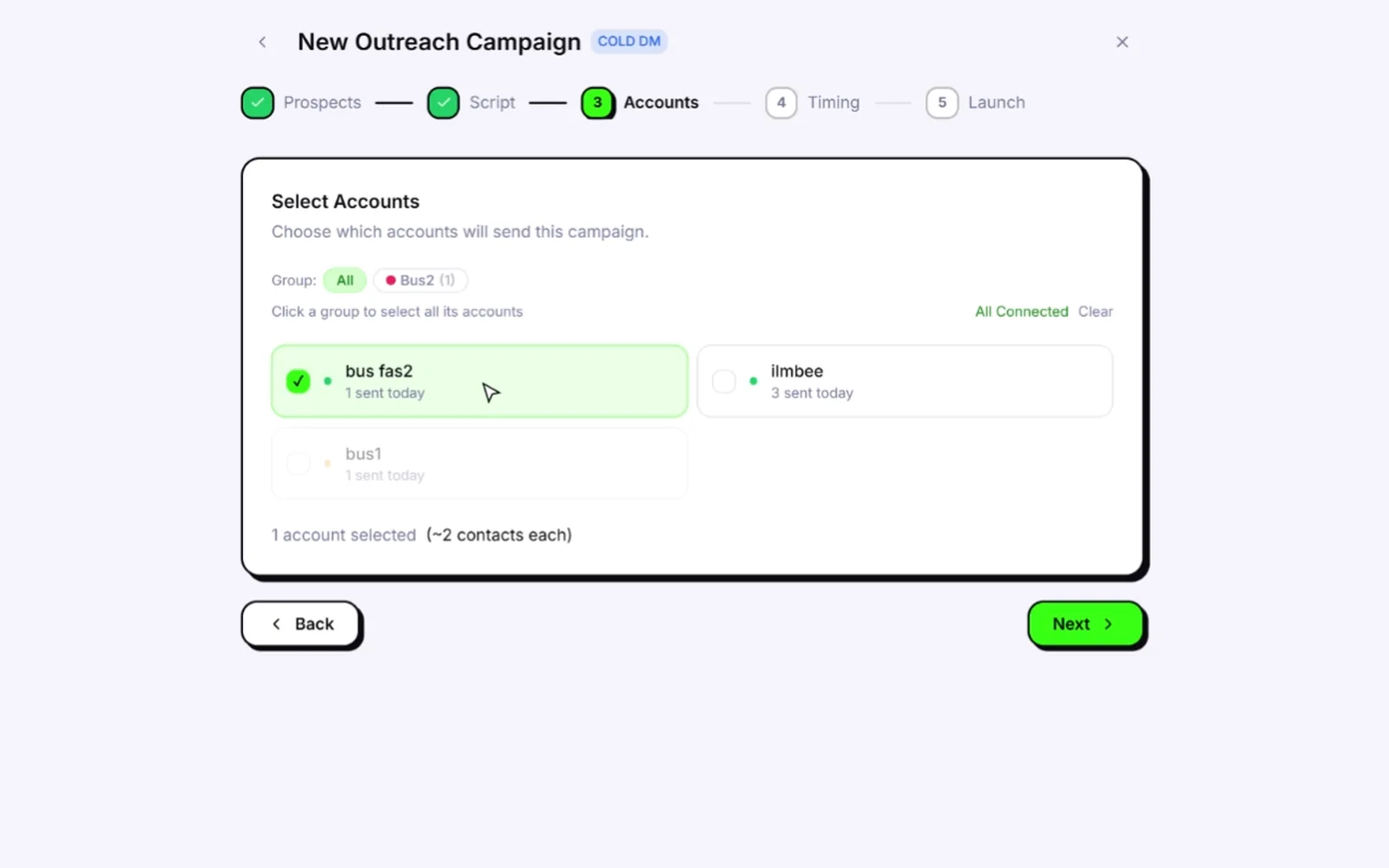
Setting it up takes a few minutes: download the app, add each number by scanning its QR code (the same Linked devices flow as WhatsApp Web), optionally assign a proxy to each, then start warm-up. The whole picture is on multiple WhatsApp accounts in one app, and if you're planning volume, how many WhatsApp accounts you need for bulk messages does the maths.
Every number in one window, without logging out.
Free account and download for Windows 10 and 11. Unlimited numbers on one lifetime licence.
Download the app freeFrequently asked questions
Can I use 2 WhatsApp accounts on my PC?
Yes. Link one number to WhatsApp Desktop and the second to WhatsApp Web in a separate browser profile or a private window. Each account needs its own phone number. WhatsApp's built-in two-account switcher only works on phones.
Can I open two WhatsApp Web accounts in the same browser?
Not in the same browser profile: a second tab opens the same account. Use a second browser profile, a different browser, a private window or a multi-messenger app for each extra account.
Does WhatsApp Desktop support multiple accounts?
No. WhatsApp's Help Center says the multiple account feature is only available on mobile devices. WhatsApp Desktop for Windows and Mac holds one account at a time.
How many devices can one WhatsApp account be linked to?
Up to four linked devices at a time, plus the primary phone. A WhatsApp Business account can be on up to five devices in total, or 10 with Meta Verified. Log in on the primary phone every 14 days to keep linked devices connected.
Can I use WhatsApp and WhatsApp Business on the same PC?
Yes, as two separate accounts with two numbers. Link one to WhatsApp Desktop and the other to WhatsApp Web in another browser profile, or hold both in a multi-account app.
Is it safe to use third-party apps for multiple WhatsApp accounts?
Apps that load the real WhatsApp Web are a different thing from modified WhatsApp clones. Use well-known software downloaded from its official site, check what access it asks for, and remember that any tool that sends bulk or automated messages carries ban risk under WhatsApp's terms.